Made for this idea
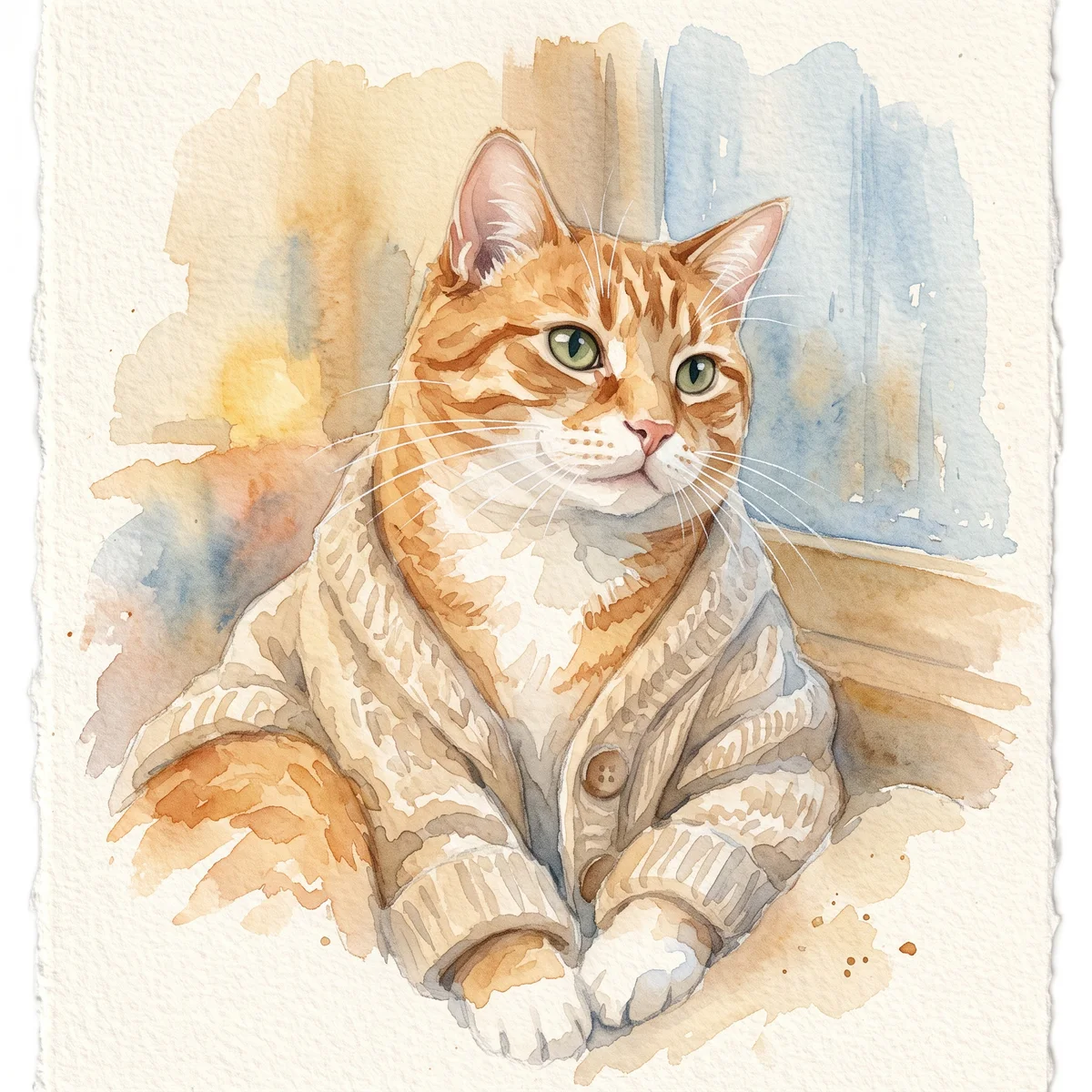
A soft portrait for a small print, keepsake or quiet profile image. Pale washes work best when the face remains the strongest shape in the composition.
Image to image
Compare a generated portrait with its source photo, record identity changes and decide which edits matter before downloading or printing a final image.
Your next useful step
Choose your starting point, edit the instructions, and review the credit quote before generating. Current access conditions are shown in the creator.
Illustrative scenario, not a customer testimonial.
An output has the right coat color but a shorter muzzle and rounder eyes. Record those differences beside the source and revise the prompt or reference; overall prettiness should not replace the likeness check.
Watercolor portrait
A soft portrait for a small print, keepsake or quiet profile image. Pale washes work best when the face remains the strongest shape in the composition.
Use even lighting and a plain background. Ask for a restrained palette and leave paper-colored space around the ears; busy scenery can obscure fine whiskers.
Check that watery edges have not erased an eye, merged the ears or moved a distinctive patch. Review at the size you intend to display, then use the print-size calculator if printing.
Upload one to five JPG, PNG or WebP references, each up to 12 MB. Start with a clear face and add another angle only when it explains a marking or body feature.
Say what should change and what should remain: for example, change the setting while keeping the ear shape, eye color and chest patch. Avoid combining an outfit, background, pose and lighting change in the first attempt.
Check the quoted credits before submitting. When the work is ready, compare the face, edges and composition; for video, watch the beginning, middle and end. Download the accepted file from your library before its expiry date.
Image to image
This editable preset guides the model. Review the result before keeping it; a preset is not a guarantee of likeness, exact motion or flawless editing.
Edit the uploaded pet photograph. Soft watercolor pet portrait with visible paper texture. Preserve the pet’s recognizable face, coat markings and proportions. Do not add text or watermarks.Try the other starting point · Text to image →
These are individual tests with licensed photographs or a written prompt. Compare the details before choosing a workflow; each result can differ.
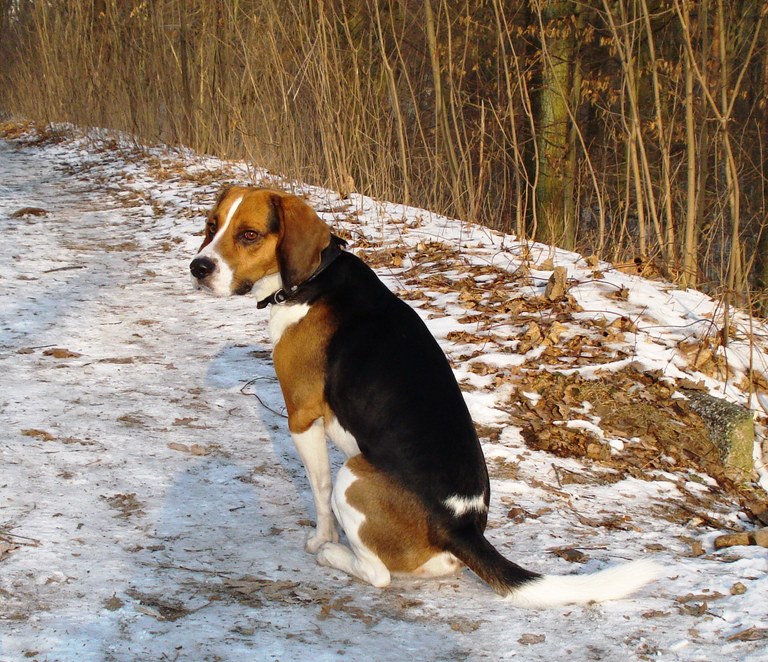
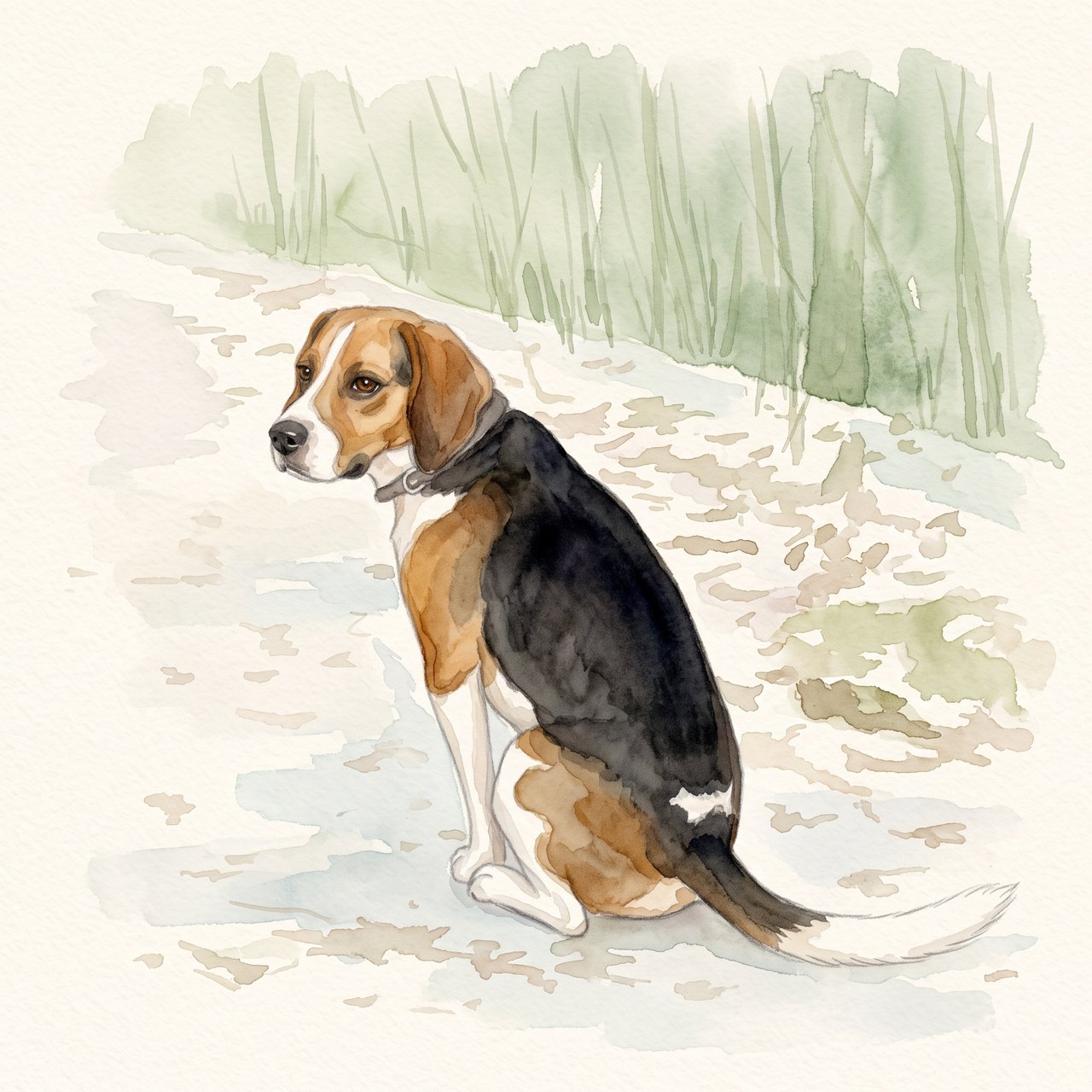
The seated pose, white blaze, dark saddle and white-tipped tail remain recognizable. The face and fur edges are redrawn, and woodland shapes remain despite the request for a plain background. Check these details before using the portrait.
Source photograph: Grzes1966 · CC0-1.0
R07 · 2026-10-14 · fal-ai/nano-banana-2/edit
Create a gentle watercolor portrait from this exact tricolor dog photo. Preserve the white blaze, black saddle, tan ears, white-tipped tail and visible seated pose. Keep the entire existing photo content in view. Use a clean pale cream paper background and soft sage accents. No additional animals, text, clothing, wings, halo, extra limbs or invented props.
Images and videos are compressed for this page. The dimensions shown describe the downloadable original. Video previews use the delivered clip without changing its action or playback speed.
Free previews carry a watermark: images up to 768 px on the long side and videos at 480p. They remain available for 14 days. Original access requires purchased credits when checkout is available; unlocked works are kept for 90 days. Check the actual dimensions and expiry on the completed work.
View pricing and access →Uploads and generated files belong to your private workspace. Generation providers process the material you submit. Sharing is a separate choice; upload only material you have permission to use.
Read the data-handling notice →Upload one to five JPG, PNG or WebP references, each up to 12 MB. Start with a clear face and add another angle only when it explains a marking or body feature.
Check that watery edges have not erased an eye, merged the ears or moved a distinctive patch. Review at the size you intend to display, then use the print-size calculator if printing.
A reference image gives the model information to work from, but distinctive markings, proportions and expressions can change. Text-only creation invents a pet from your description. If exact documentary detail matters, retain the original photo alongside any AI interpretation.
Free previews carry a watermark: images up to 768 px on the long side and videos at 480p. They remain available for 14 days. Original access requires purchased credits when checkout is available; unlocked works are kept for 90 days. Check the actual dimensions and expiry on the completed work.
This editable preset guides the model. Review the result before keeping it; a preset is not a guarantee of likeness, exact motion or flawless editing.
Updated 2026-10-12
An AI pet portrait can be polished and still change the animal. Open the reference and result together, then check the details that let you recognize your own pet without relying on the costume or background.
Open the original and result locally, then check the face, markings and anatomy before keeping the file.
Your entries stay in this browser tab. Download a copy before leaving; this worksheet does not send messages or place orders.
Open your own source and result side by side. Files stay on this device. Images: JPEG, PNG or WebP up to 12 MB / 40 MP. Video: MP4 or WebM up to 150 MB.
Look at eye spacing, muzzle length, nose shape and ear position with both heads similarly visible. A tiny source beside a large result makes comparison harder. Record the filenames so the review remains tied to the correct versions.
Trace the main patches from the source: brow, cheek, chest and visible paws. Note which side you mean. If the output changes the age or coat length, decide whether that was requested rather than assuming a youthful face is an improvement.
Count visible limbs, check where paws touch objects, and look for changed collars, text or background details. The worksheet records your answers; it is not an automated identity score or a certification of the image.
Keep the result, list a revision, or leave it undecided. A new portrait generation is a separate request, so write a useful correction before starting again. Unlocking a saved result preserves that result rather than regenerating the face.
When checking an AI pet portrait, start with the overall head silhouette, then the muzzle, eyes, ears and major coat markings. Use the same order for each candidate so a beautiful background does not distract you halfway through. Compare at a similar displayed size and return to the original file when a small detail is unclear. A breed resemblance is weaker evidence than preserving the individual features in the source. Write what changed rather than giving an unexplained score such as “eight out of ten.”
Brush texture, simplified fur and a new background may be accepted artistic choices. A different eye color, an enlarged white patch or an extra paw is a different kind of change. Keep the two categories in separate notes. You might accept a softer fur texture while rejecting a mirrored face marking. The AI pet art guide explains how styles simplify a photograph. This distinction helps you request a correction without removing every aspect of the style you originally wanted.
An example note could read: “Original: white patch below the chin only. Output: white fur extends across the whole chest. Keep the output’s plain background, but restore the smaller patch.” That note identifies the evidence, the problem and the part worth keeping. Save the candidate with a version label so the next review does not refer to the wrong file. If the original is too dark to prove the feature, add a clearer reference or mark the point uncertain rather than presenting a guess as a confirmed error.
A small unwanted object may call for a focused revision. An unclear main photograph may call for a better source. A portrait that meets the intended use may need no further generation. The portrait generator workflow covers creating another candidate; the photo brief is useful when the inputs need reorganizing. Inspect the chosen full download before printing or sharing. A review note documents your judgment about that image; it is not an independent certification of model accuracy.
No. It provides a private side-by-side view and a structured human review record.
No. Record whether it was an intentional style choice and whether it suits the intended use.
You can prepare a layout, but check the selected artwork first so an identity error is not carried into a physical print.