Made for this idea
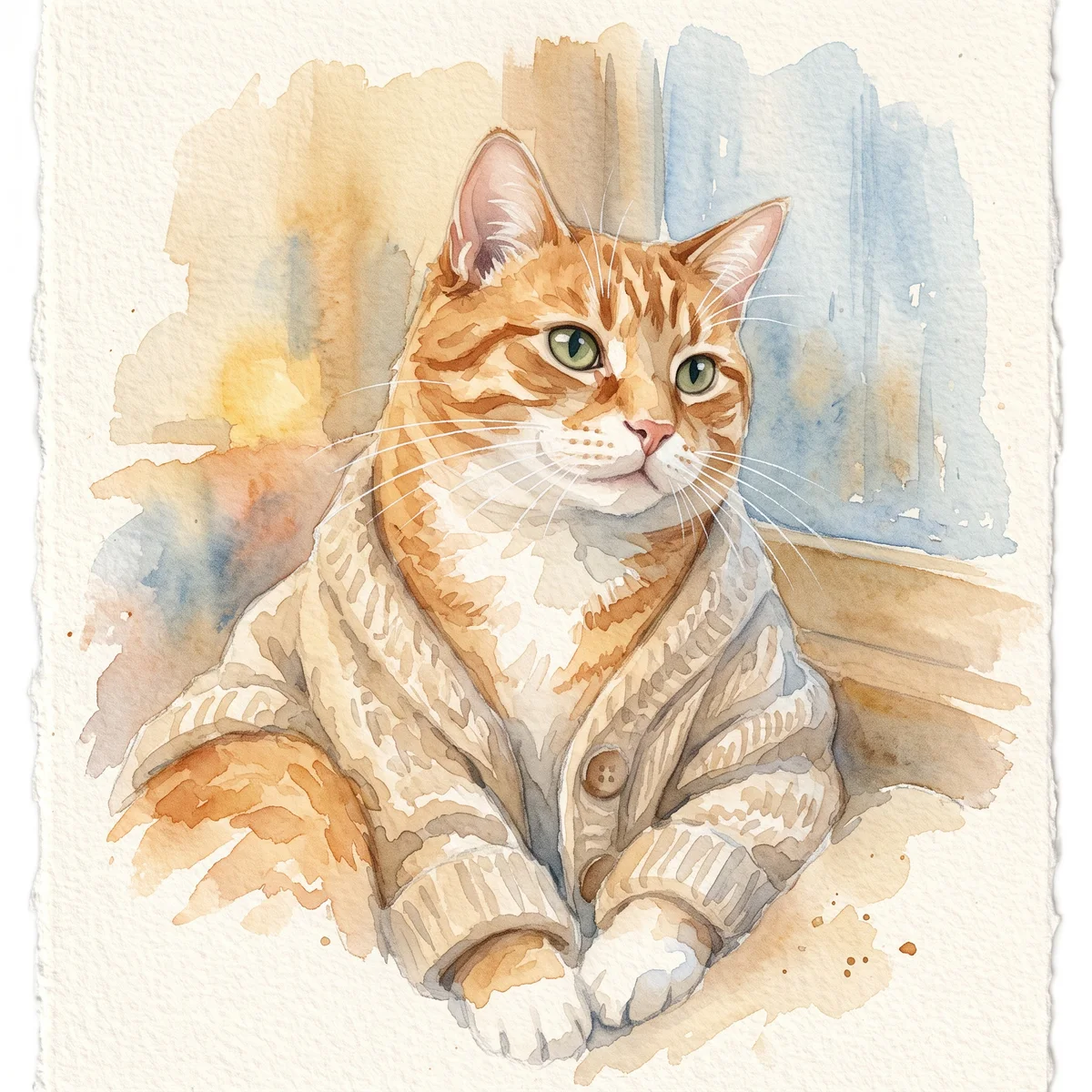
A soft portrait for a small print, keepsake or quiet profile image. Pale washes work best when the face remains the strongest shape in the composition.
Image to image
Use your pet photos to create a portrait in a chosen style. Select references, review the credit quote, and compare the finished face with the source.
Your next useful step
Choose your starting point, edit the instructions, and review the credit quote before generating. Current access conditions are shown in the creator.
Open the creatorIllustrative scenario, not a customer testimonial.
If you want your own pet, choose the image-based workflow and upload a reference. If you only need an imagined orange cat in a watercolor style, text-to-image is enough; the two inputs answer different requests.
Watercolor portrait
A soft portrait for a small print, keepsake or quiet profile image. Pale washes work best when the face remains the strongest shape in the composition.
Use even lighting and a plain background. Ask for a restrained palette and leave paper-colored space around the ears; busy scenery can obscure fine whiskers.
Check that watery edges have not erased an eye, merged the ears or moved a distinctive patch. Review at the size you intend to display, then use the print-size calculator if printing.
Upload one to five JPG, PNG or WebP references, each up to 12 MB. Start with a clear face and add another angle only when it explains a marking or body feature.
Say what should change and what should remain: for example, change the setting while keeping the ear shape, eye color and chest patch. Avoid combining an outfit, background, pose and lighting change in the first attempt.
Check the quoted credits before submitting. When the work is ready, compare the face, edges and composition; for video, watch the beginning, middle and end. Download the accepted file from your library before its expiry date.
Image to image
This editable preset guides the model. Review the result before keeping it; a preset is not a guarantee of likeness, exact motion or flawless editing.
Edit the uploaded pet photograph. Soft watercolor pet portrait with visible paper texture. Preserve the pet’s recognizable face, coat markings and proportions. Do not add text or watermarks.Try the other starting point · Text to image →
These are individual tests with licensed photographs or a written prompt. Compare the details before choosing a workflow; each result can differ.
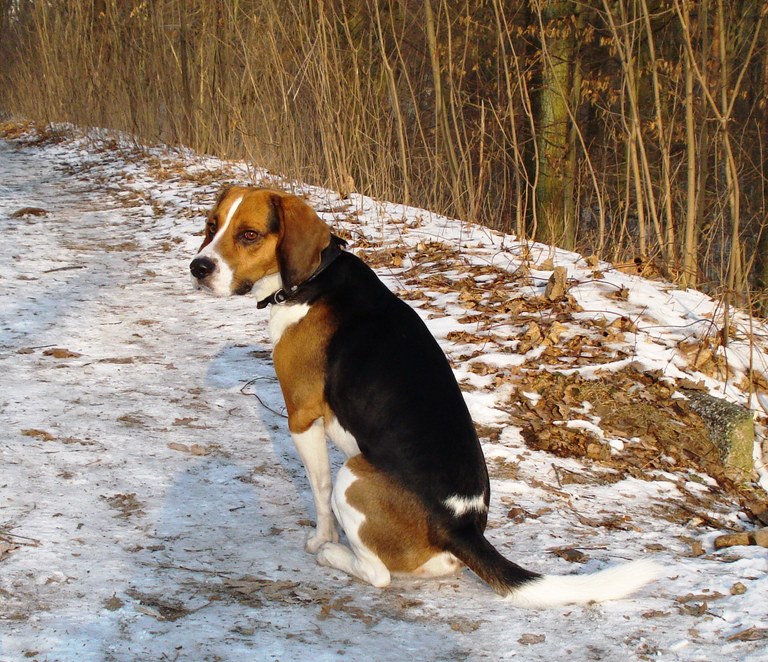
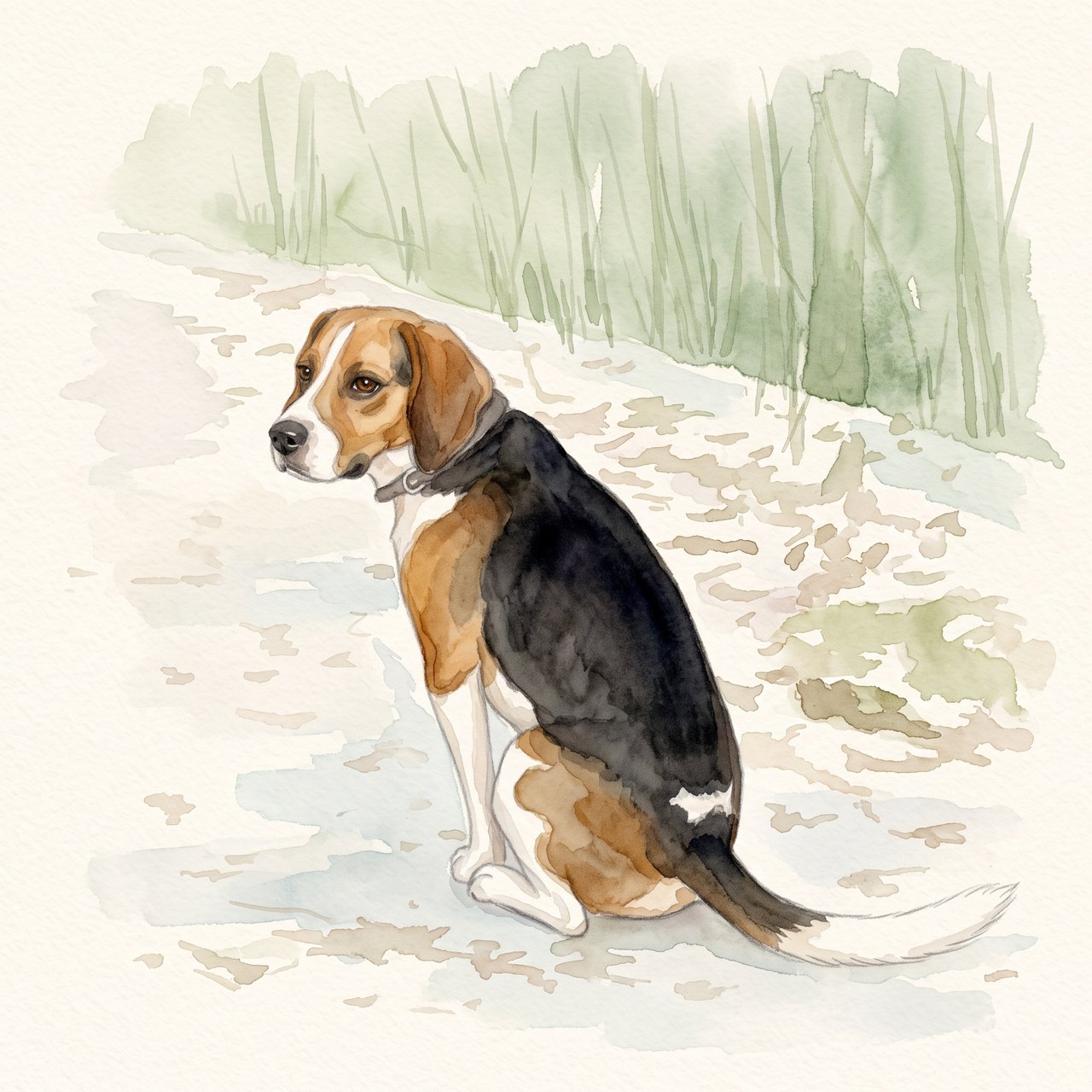
The seated pose, white blaze, dark saddle and white-tipped tail remain recognizable. The face and fur edges are redrawn, and woodland shapes remain despite the request for a plain background. Check these details before using the portrait.
Source photograph: Grzes1966 · CC0-1.0
R07 · 2026-10-14 · fal-ai/nano-banana-2/edit
Create a gentle watercolor portrait from this exact tricolor dog photo. Preserve the white blaze, black saddle, tan ears, white-tipped tail and visible seated pose. Keep the entire existing photo content in view. Use a clean pale cream paper background and soft sage accents. No additional animals, text, clothing, wings, halo, extra limbs or invented props.
Images and videos are compressed for this page. The dimensions shown describe the downloadable original. Video previews use the delivered clip without changing its action or playback speed.
Free previews carry a watermark: images up to 768 px on the long side and videos at 480p. They remain available for 14 days. Original access requires purchased credits when checkout is available; unlocked works are kept for 90 days. Check the actual dimensions and expiry on the completed work.
View pricing and access →Uploads and generated files belong to your private workspace. Generation providers process the material you submit. Sharing is a separate choice; upload only material you have permission to use.
Read the data-handling notice →Upload one to five JPG, PNG or WebP references, each up to 12 MB. Start with a clear face and add another angle only when it explains a marking or body feature.
Check that watery edges have not erased an eye, merged the ears or moved a distinctive patch. Review at the size you intend to display, then use the print-size calculator if printing.
A reference image gives the model information to work from, but distinctive markings, proportions and expressions can change. Text-only creation invents a pet from your description. If exact documentary detail matters, retain the original photo alongside any AI interpretation.
Free previews carry a watermark: images up to 768 px on the long side and videos at 480p. They remain available for 14 days. Original access requires purchased credits when checkout is available; unlocked works are kept for 90 days. Check the actual dimensions and expiry on the completed work.
This editable preset guides the model. Review the result before keeping it; a preset is not a guarantee of likeness, exact motion or flawless editing.
Updated 2026-10-12
This AI pet portrait generator starts with your pet's photos. Choose a style, select a pet profile, add any details the picture must keep, and review the price before generation. The result is a new interpretation of the references, so compare the actual output before deciding to keep it.
A pet profile holds one animal's name and one to five reference photos. Use photos you own or have permission to use. Choose consistent age, coat length and markings; unrelated reference animals make identity harder to judge.
For an owner-and-pet portrait, use separate person and pet profiles. Adding a person's photo to an ordinary pet profile does not make it a supported combined portrait.
Start with the style picker above. In the preference field, name a visible feature or a specific creative choice: keep the white left paw, leave both ears uncovered, or use a plain blue background.
Avoid asking the generator to correct the pet's personality, health or history. It sees reference material and a prompt, not a verified biography. The storybook and watercolor options are different creative directions rather than measured quality levels.
The workspace shows the selected pet, credit source and quote before the final generation action. A free image try creates a marked preview. Paid generation or unlocking uses the credit amount shown by the app.
Unlocking an existing result opens the saved original; it does not ask the model to make the same picture again. Starting another generation is a separate request.
Check eyes, muzzle, ear tips, coat patches and visible paws. Look beyond the face: collars, paws on furniture and background objects can also change.
Record an uncertain detail instead of guessing that it is accurate. The portrait review worksheet separates an acceptable style change from an identity mismatch. Downloads and print layouts should happen after this review.
An AI pet portrait generator has a more useful starting point when you describe the actual pet and intended image. Choose whether you want a head portrait, a full-body scene or a particular costume style. A head-only reference cannot document a hidden body, so a wider scene introduces more interpretation. Start with the main photograph and add supporting references only for visible details that need explanation. If you are deciding between a real pet and an invented character, the pet generator guide separates those two goals.
If you change the reference, crop, style and background at once, you cannot tell which change helped. Keep the strongest reference and vary one choice at a time. After each preview, write a concrete note: the left ear changed, the white patch grew, or the frame cut off the paws. A small set of purposeful attempts gives you a clearer decision than an unlabelled gallery. It does not guarantee a successful result within any fixed number of generations, so review the current quote before each paid action.
Judge identity before sharpness or decorative effects. Compare the source and preview at a similar scale, checking head proportions, muzzle, eye spacing, ears and markings. Then inspect the crop and background. The AI pet portrait review provides a way to record differences. An attractive image that changes the pet is not a good identity-preserving portrait. If the source is too small or unclear, returning to a better reference may help more than asking for increasingly detailed style words.
Decide whether the selected portrait will become a digital keepsake, wallpaper or print. Read the actual output’s dimensions after downloading; do not use the apparent size of a browser preview. Preserve the source separately and give the selected output a clear file name. For a dog’s device background, the wallpaper tool addresses crop and screen fit. For physical display, use the print-size guide. These later steps prepare a use for the image; they cannot correct an identity mistake in the generation.
Use the multi-pet workflow, where each pet has its own profile. This page is for one pet at a time.
That is not guaranteed. The output must be checked against your references, especially when the style changes anatomy or texture.
A saved image can be selected in the video workflow when its access level permits reuse. For a specific cooking or podcast scene, start from the matching inspiration page so the setting and motion are selected together.
Keep your reference photos and the chosen output separately. That makes the AI pet portrait easier to evaluate, export and revise later.